

An effective way to serve many, or large, files to students in Canvas is by using Box within a page on your Canvas course. This guide outlines how to use Box to embed a directory within your Canvas course.
Step 1: Sign in to your UNCG Box account
- Log in to your account using your UNCG credentials here: uncg.box.com
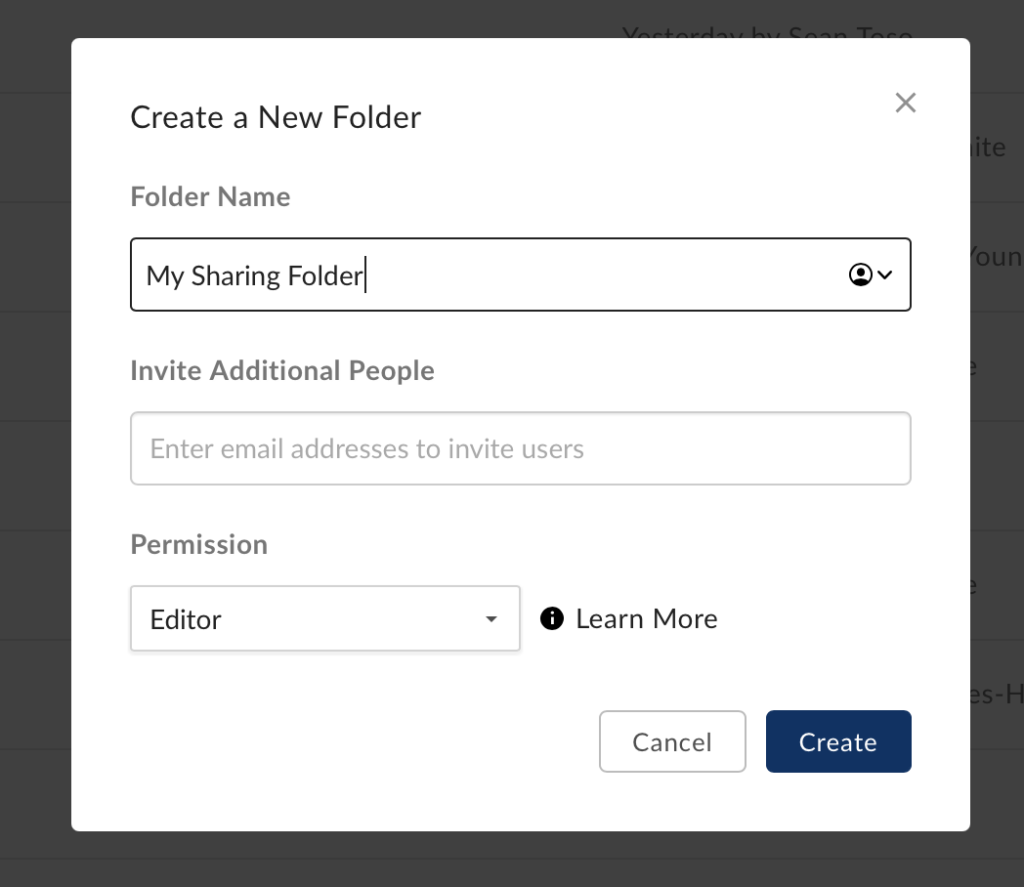
- Once logged in, click “New” and then select “Folder”
- Name the folder so you can identify it with the content in which it contains for easy identification later
- Click “Create”
Step 2: Upload your content
- Find the folder that was created and click to open
- Drag and drop files or click Upload>File to use your computer’s file browser to upload files
Step 3: Make Content Accessible to Your Students
- To allow your students access to your folder in Box, hover over the row in which your file/folder is placed in Box
- Click the “Share” button in the right margin of the same row
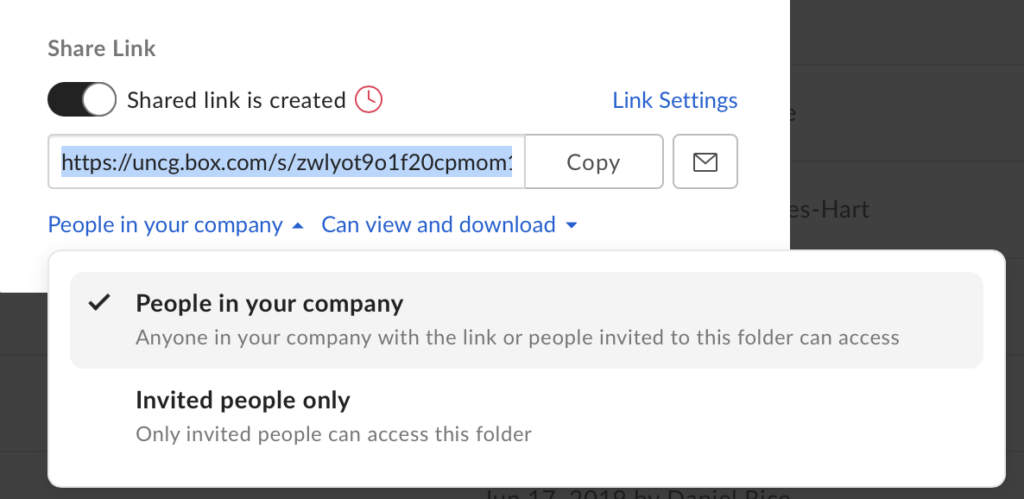
- In the dialogue box that appears click “Create share link” so that the slider is enabled
- Click “Invited People Only” (set by default) and then select “People in your company” to allow access for all of your students or manually add each name to the “Invite People” box above to limit access to only your students.
Step 4: Access the Embed Code for your folder
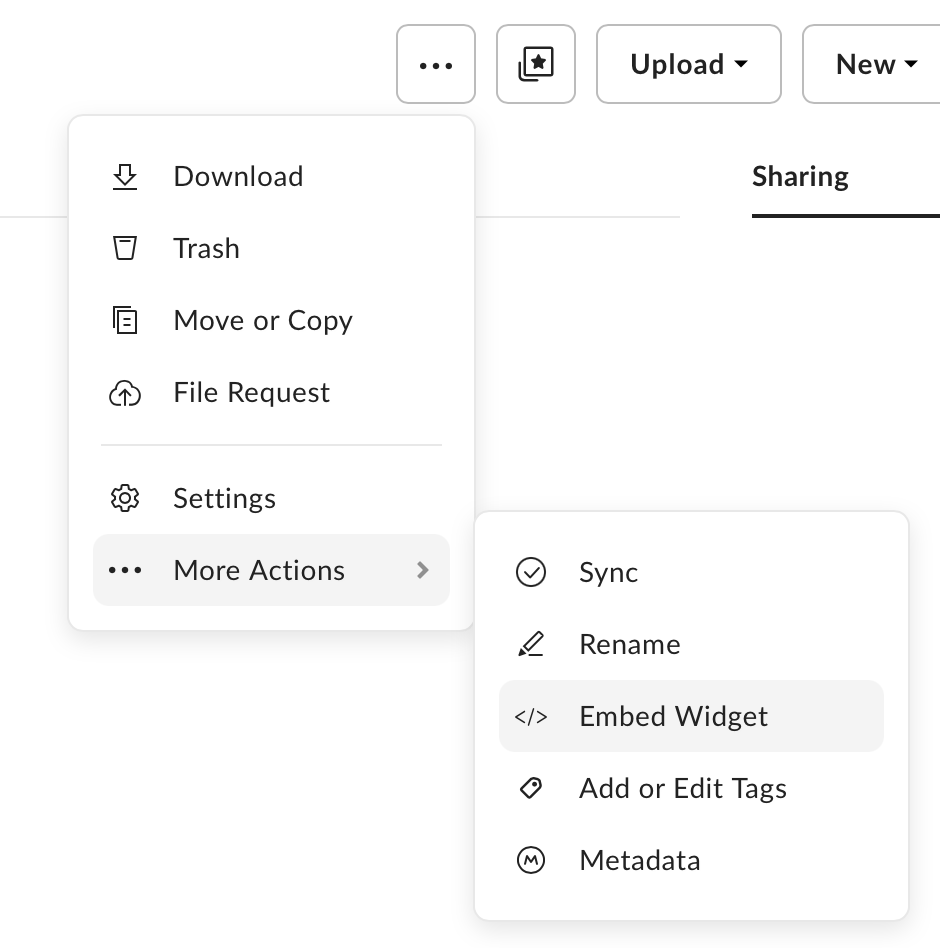
- While in your folder in Box, click on the three horizontal dots button in the top right of the window (More Options)
- Navigate to More Actions>Embed Widget
Step 5: Configure your embed code.
- Make the desired adjustments to how the embedded content will appear (color, view, sorting, etc.)
- Select ALL of the embed code and copy to your clipboard (you may also click “Preview this embed” to see how this embedded material will look in your Canvas page)
Step 6: Create New Page in Canvas
- In Canvas, create a new page by selecting Pages in the left navigation of your canvas course, and then clicking “+ Page” in the upper right corner.
Step 7: Embed your code
- Name your new page in the top text box
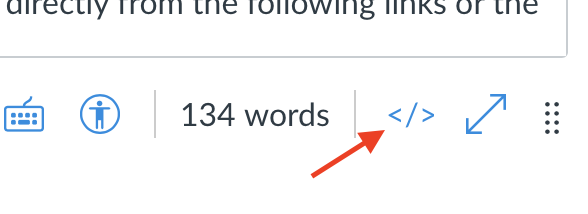
- Select the HTML in the bottom right of the page (just below the large text box to the right. Look for the </> icon)
- Paste the embed code that you previously copied from Box.
Step 8: Save and Publish
- Click Save and Publish.
- Your Box directory contents will display within Canvas when navigating to this specific page in your course.